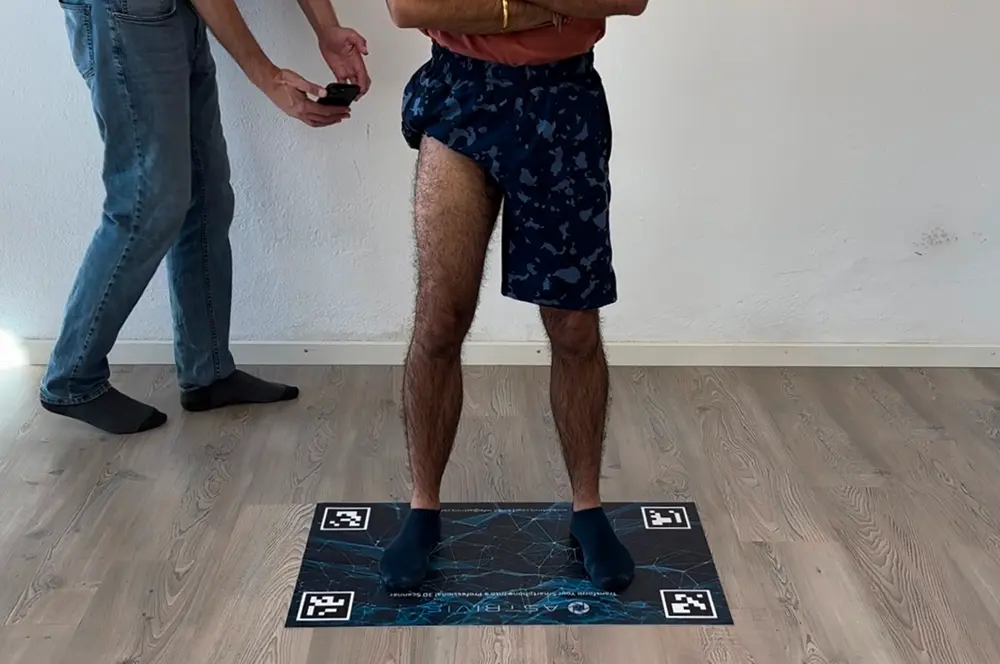
Turning your smartphone into a 3D scanner feels like magic. You point, you move, and suddenly a digital twin appears on your screen.
But there is one tricky challenge in mobile 3D scanning: Absolute Scale (Size).
If you take a photo of a toy car close up, and a real car far away, they might look the same size in the picture. The reconstruction algorithm (photogrammetry) has the same problem - it sees the shape perfectly, and reconstructs it, but it doesn't always know if the object is 5 centimeters or 5 meters tall.
This is where a Reference Object comes in. In this guide, we’ll explain what it is, when you need it, and how to use it in the Astriscan app to get professional, measurable results.
What is a Reference Object?
Think of a reference object as a "translator" for scale. It is an item placed in your scanning scene that has known, precise dimensions.
When the software sees this object, it says: "Aha! I know exactly how big that piece of paper is. Therefore, I can calculate exactly how big everything else is around it."
Without it, your 3D model might look perfect, but it could be "floating" in the scale space with no real-world dimensions associated with it.
When Do You Need A Reference Object?
Do you need a reference object for every single scan? Not necessarily. It depends on your smartphone hardware.
- You HAVE a device with active depth sensors (LiDAR / TrueDepth)
- Examples: iPhone 12/13/14/15 Pro or Pro Max, newer iPad Pros.
- The Situation: These devices emit invisible light, and estimate the time it takes for the light to reflect back. Using that data, it calculates distances and create precise metric 3D maps of the environment.
- Do you need a reference? Usually no, but using one can still improve accuracy for engineering-grade measurements.
- You HAVE a standard device (RGB Camera only)
- Examples: iPhone 12/13/14/15 (Mini or Standard), iPhone SE, most Android phones.
- The Situation: Your phone relies purely on visual data (photographs). It creates the 3D shape well, but it has no way of knowing "how big" the object is.
- Do you need a reference? YES, absolutly. Without it, you cannot get metric measurements.
What Can You Use as a Reference?
You can use almost anything with a standardized size, but some options are better than others.
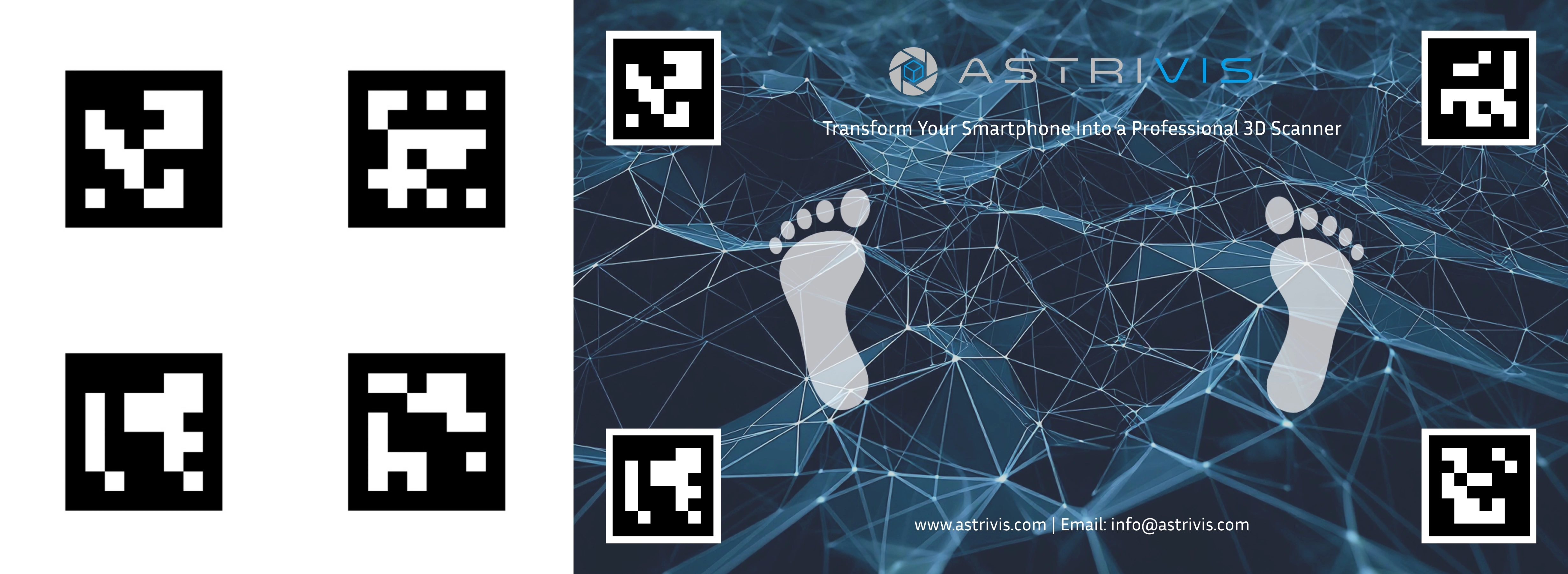
Option A: The ArUco Marker (Highly Recommended)
This is a special square code (similar to a QR code) that is designed specifically for computer vision.
- Why it’s best: Not only does it provide scale, but the high-contrast black-and-white pattern helps the app "track" the scene better. It reduces the chance of the scan failing.
- Where to get one: You can download and print an ArUco marker directly from the app or contact us for assistance. It is also possible to create a custom scan mat with your logo and design.
Option B: Standard Everyday Objects
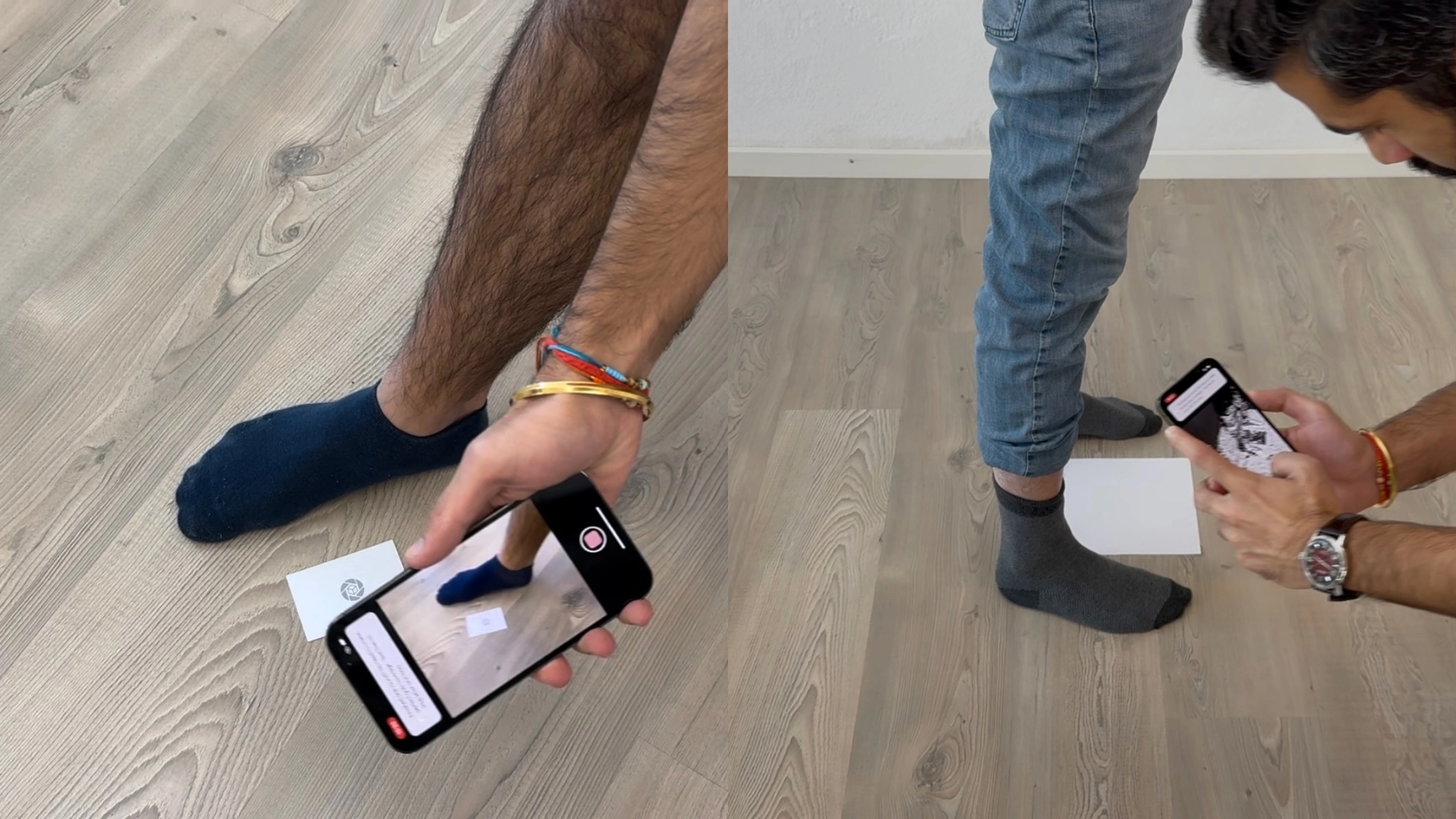
If you do not have a printer available, we can simplify the process for your users by using common everyday items, as long as they are predefined and configured before release. For example:
- A4 or US Letter Paper: Great for scanning larger objects (like shoes or furniture).
- Standard Business Card: Good for smaller objects.
- Credit Card: (Be careful with sensitive infomation!)
- Ruler / Tape Measure: Place it clearly next to the object.
If you have a specific idea in mind, let us know and we can define a suitable reference object!
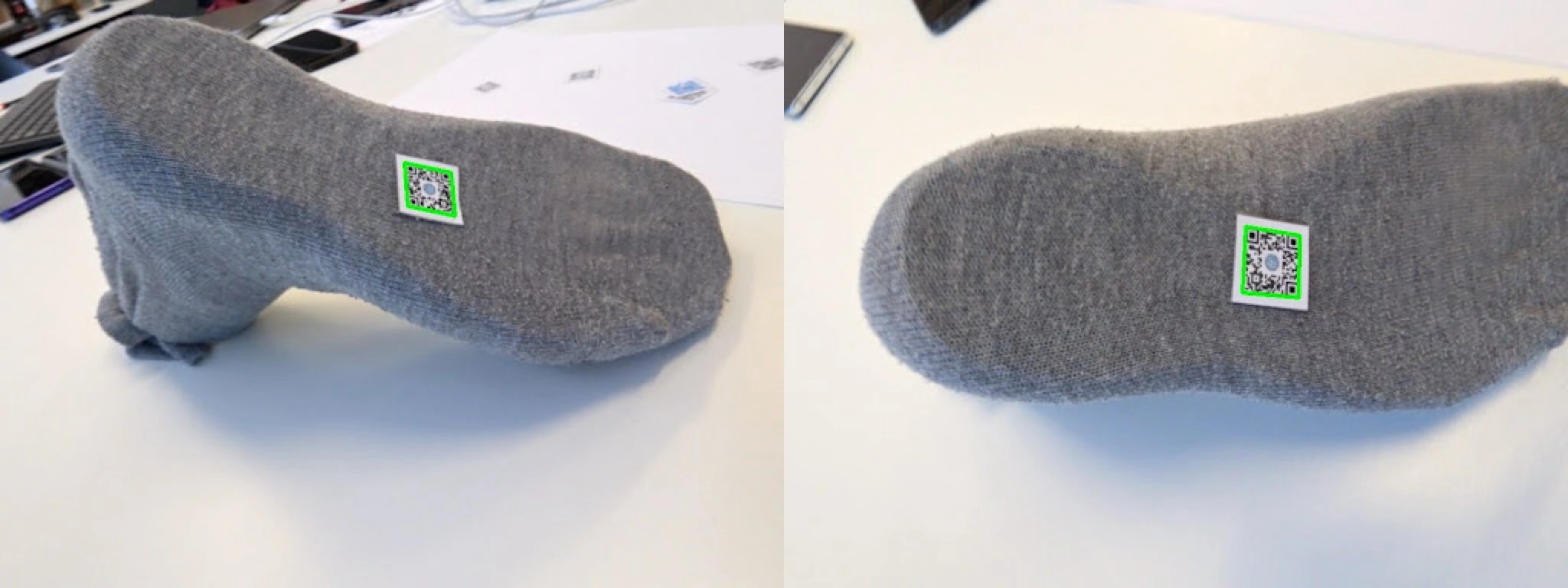
Option C: QR Code Stickers (Coming Soon for Ordering)
We are launching official pre-printed stickers that simplify everything.
- Why choose this: No printing, no cutting, no headache. Simply buy a pack, peel a sticker, place it next to your object, and scan. It’s the ultimate "grab and go" solution for frequent scanners.
How to Scan with a Reference Object (Workflow)
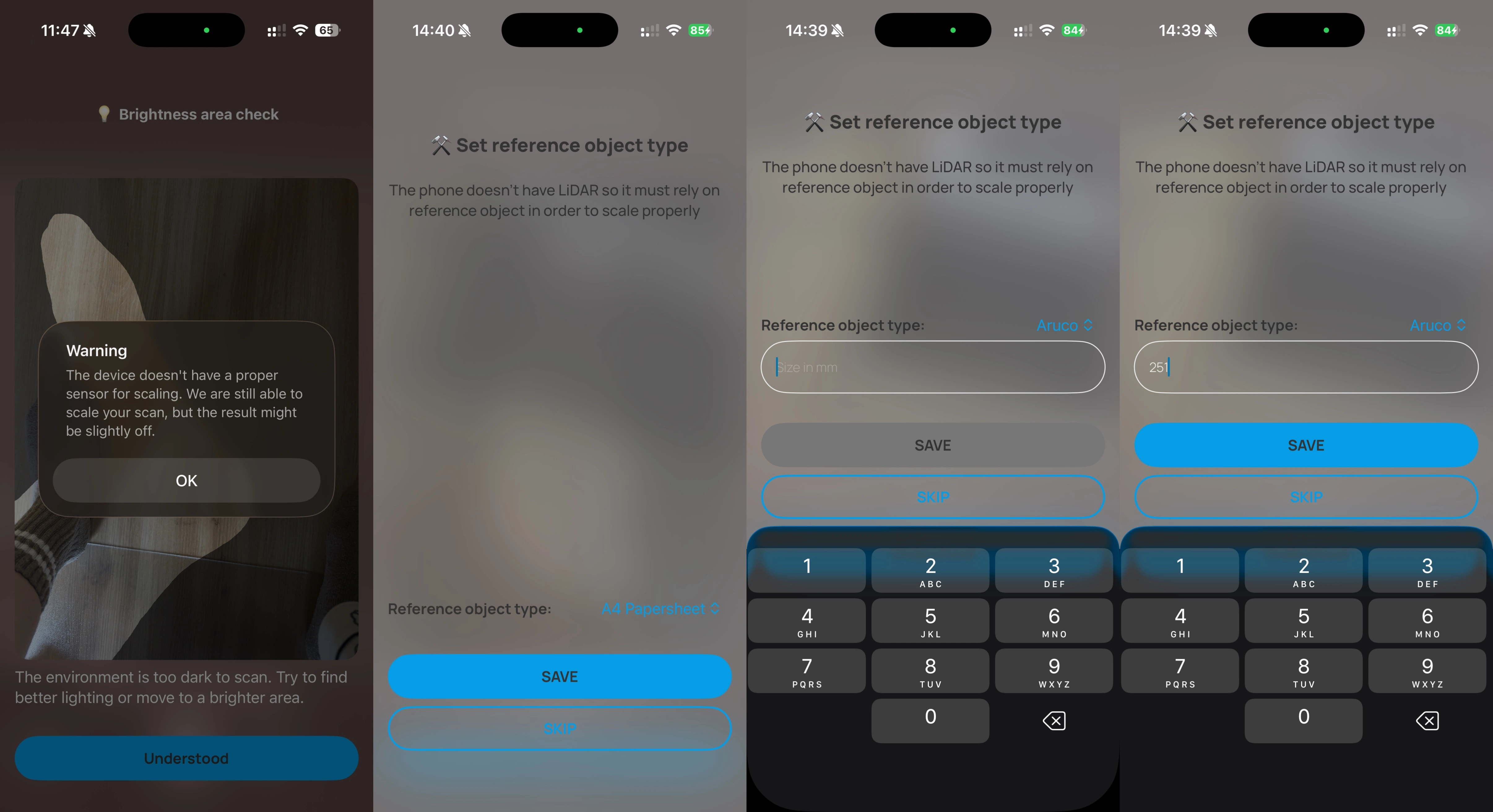
We’ve designed Astriscan to make this process seamless. If our app detects that your phone does not have an active sensor (like LiDAR), it will automatically guide you on what reference object to use based on what you are scanning.
Here is the simple workflow:
- Select Your Scan Mode & Check the Guide When you open a scan mode (like Foot Scan) for the first time, an instruction card will appear with specific recommendations:
- Single Foot: Place an A4 paper on the floor in front of your toes.
- Both Feet: Place the A4 paper between your feet.
- Plantar (Sole) Scan: Use a printed Marker or QR code sticker.
- Place & Measure the Reference Object Place your object on a flat surface with the reference (Paper/Marker) right next to it.
- Important for Printed Markers: Printers often scale images differently. Always measure your printed marker with a ruler first (e.g., it might be 252x252mm instead of 250x250mm). Input these exact dimensions into the app when prompted to ensure 100% accuracy.
- Scan Carefully Start your scan with the reference object in the scene.
- Crucial: Keep the reference object in the frame as you move. You must capture the entire reference object (all four corners). If you only capture a partial reference object, the app cannot calculate the scale.
- Auto-Scale Once processed, Astriscan recognizes the reference object (e.g., "Oh, that's an A4 paper!") and automatically scales your 3D model to the correct real-world measurements.
Ready to try it out?
Whether you are using a Pro iPhone or a standard Android, Astriscan ensures accuracy. Grab an A4 paper, print a marker, or look out for our new QR stickers, and start turning your phone into a precision tool today.
Contact us today to find the most suitable reference object for your use case.
.webp)
.webp)